



Signal linked devices let one registered account work across additional screens, including a second phone. Current Signal support lists Desktop, iPad, iPhone and Android phones or tablets, with a limit of five linked devices. You authorise a new device from the primary phone and choose whether to transfer existing conversations; the documented transfer includes chats and the last 45 days of media. The linked device has its own encrypted message delivery, so it does not need the primary phone continuously connected. There are still continuity limits: the primary phone must come online at least every 30 days, and a linked device is unlinked after 45 days of its own inactivity. Review the list in Signal Settings, and remove any device you no longer trust. Treat that removal as ending its authorisation, not as proof that all previously received or copied material has disappeared.
I care about that last distinction because I am building UmbrellaX. Adding a screen is a decision about who can read a conversation, even when the screen belongs to the same person. I do not want convenience to hide that decision behind a harmless-looking sync button.
This guide uses primary documentation checked on 8 October 2026. It describes Signal’s current workflow, not a hands-on test of every platform. UmbrellaX is pre-launch; its device-access requirements below are design direction, not a shipped feature or an audit claim.
The device list changed in 2026
If you found an older guide saying Signal only links a computer or an iPad, check its date. Signal’s August 2026 announcement added Android phones and tablets and expanded iOS linking to iPhones. That makes using Signal on two phones a supported linking scenario, rather than a reason to register the same number again.
One device remains the registered primary. A second device joins that account through linking. Those are different actions. Signal’s multiple-device troubleshooting page distinguishes one registered mobile device from secondary linked devices; registering again can take the previously registered phone offline.
My rule for a spare phone is simple: decide whether it is replacing the primary or joining it before starting setup. If I want both screens to remain usable, I look for the linking route. I would not follow a workaround that starts with giving an SMS code to someone else or repeatedly re-registering the account.
This article owns adding and removing a reader. For a carrier takeover or unexpected re-registration, use the separate SIM-swap account-containment guide. Mixing those situations produces advice that is too vague to follow during either one.
Add a device you control, then choose its history
Start from Signal’s current linking instructions, with both apps updated. The receiving device displays a linking QR code during setup. Desktop opens to that code; an iPad uses its add-device option; a secondary iPhone or Android device exposes Link Device through the setup menu.
The short sequence is:
- Open the linking screen on the secondary device that is physically yours.
- On the primary phone, open Signal Settings > Linked devices > Link a new device, use the device-unlock credential rather than the Signal PIN, and scan that screen.
- Choose whether to transfer history, finish linking, and send a harmless test message from the added device.
Before scanning, I would check the receiving screen and the device I expect to add. Afterward, I would inspect the primary phone’s device list. A successful scan is not my only evidence; I want the resulting authorisation to be recognisable.
If the spare phone is already set up as a separate Signal account, stop and consult the current setup instructions rather than improvising around it. Linking is part of initial registration or reinstallation. Reinstalling can affect that device’s local material, so preserve anything you need through an appropriate supported method first.
A linking QR code grants device access. It is not the same task as comparing a contact’s keys. The Signal safety-number guide explains that second procedure. I would not approve a new reader just because someone describes the scan as verification.
History transfer gives the new endpoint a past
Signal offers history transfer as a choice. Its synchronisation engineering post explains that the primary device constructs an encrypted archive and passes the new device a one-time history key. This is a device-authorised transfer, not permission for the service to read a plaintext account archive.
The important everyday consequence is more concrete: the new endpoint can now display earlier conversations. Encryption in transit protects the move; it does not make the resulting readable local copy harmless.
Imagine a personal laptop used only by you, versus a shared studio computer with other people signing in. I would consider history transfer on the first if I needed older work. On the second, I would question linking at all. Skipping history narrows the past it receives, but future messages still arrive, and another person with access to that machine may see them.
The documented media window also matters. A transferred chat history does not promise every old attachment will appear. Plan around the stated 45-day media scope, rather than deleting the original phone’s material after one reassuring sync animation.
If you initially decline transfer, Signal directs you to reinstall on the secondary device and choose it during linking if you change your mind. I would make that choice deliberately before creating a second body of local history I might later regret removing.
Linking is useful for access across screens. It is not my recovery plan for losing all trusted devices. Our encrypted-backup guide owns that separate choice, including which secret can open an archive. Keeping the decisions separate makes both easier to understand.
The primary phone can be offline, but not indefinitely
A linked device is more than a remote view of the phone. Signal’s engineering explanation describes separately encrypted delivery for devices attached to the account. That is why a computer can handle messages while the primary phone is temporarily disconnected.
Two different clocks still apply in current support:
| Device condition | Documented consequence |
|---|---|
| Primary phone does not come online within 30 days | Its linked devices become unlinked |
| One linked device is inactive for 45 days | That linked device becomes unlinked |
I would check those conditions before depending on a rarely used travel phone or leaving the primary in a drawer. A desktop that works this afternoon is not evidence that the primary can disappear permanently.
If a device becomes unlinked, relinking requires the registered primary. Do not infer that the secondary can promote itself into the account’s recovery authority merely because it still has a local conversation history. That authority question belongs to the account system; Signal registration lock explains a different protection against re-registration.
My preference is to have fewer linked screens with clear purposes. A device kept as an emergency convenience should not quietly become an unmaintained copy of years of conversations. I would either keep it updated and recognised, or remove it.
Remove access without promising to recall the past
Use the primary device to review Signal Settings > Linked devices. Signal’s unlinking instructions give Android’s device menu and iOS’s edit or device-menu route to confirm removal. Unlink the specific entry you no longer want authorised.
When I still control the computer, I would also clean up its local Signal data. Signal documents Desktop Settings > General > Delete Data as the procedure that unlinks that Desktop and deletes its message history there. Removing an entry from the phone and deleting material on a computer are actions with different purposes.
The conservative boundary is that ending authorisation cannot recall a screenshot, downloaded file or other copy already made. The phone-side instructions do not promise universal remote erasure, and I would not invent that promise. A lost computer needs an assessment of what was already readable on it, alongside ending its access.
For an unfamiliar entry, I would remove it promptly and then work out how it got approved. Did someone have the unlocked primary phone? Was a linking code presented as a support step? If sensitive information may already have reached it, let the affected conversation participants know through a trusted channel. I would pause sensitive sending while resolving the event, rather than treating a tidier device list as proof that no exposure happened.
This is the practical boundary of end-to-end encryption: an authorised endpoint is allowed to read. Revocation must address future authority, while incident response addresses any past disclosure.
A support QR code can be an authority request
Signal’s Official Chat guidance warns that impersonators may ask a user to scan a code or link a device, connecting a scammer’s screen to the account. Treat a request to add a device as a permission change, even if the surrounding message sounds like account maintenance.
I would only initiate linking because I want a particular device I control to join. A stranger offering to fix delivery, verify an account or prevent suspension does not become trustworthy because the steps take place inside a genuine app.
Signal now has a legitimate one-way Official Chat for product information. Its support page explains how to recognise that channel and says it does not accept replies or calls. That is a useful distinction: I would reject interactive help that requests secrets or device access, without teaching people to dismiss every real product notice.
When evaluating a permission screen, I ask what new authority will exist after I approve it. If the answer is another device able to read messages, then the explanation must justify that reader. A label such as support or verification does not change the consequence.
The permission I want UmbrellaX to make explicit
The device boundary is one reason I am building UmbrellaX around deliberate account authority rather than a phone-number foundation. Possessing a telecom identifier should not be a substitute for approving another reader. But removing the number alone would not settle this problem: a badly explained device invitation could still expand access.
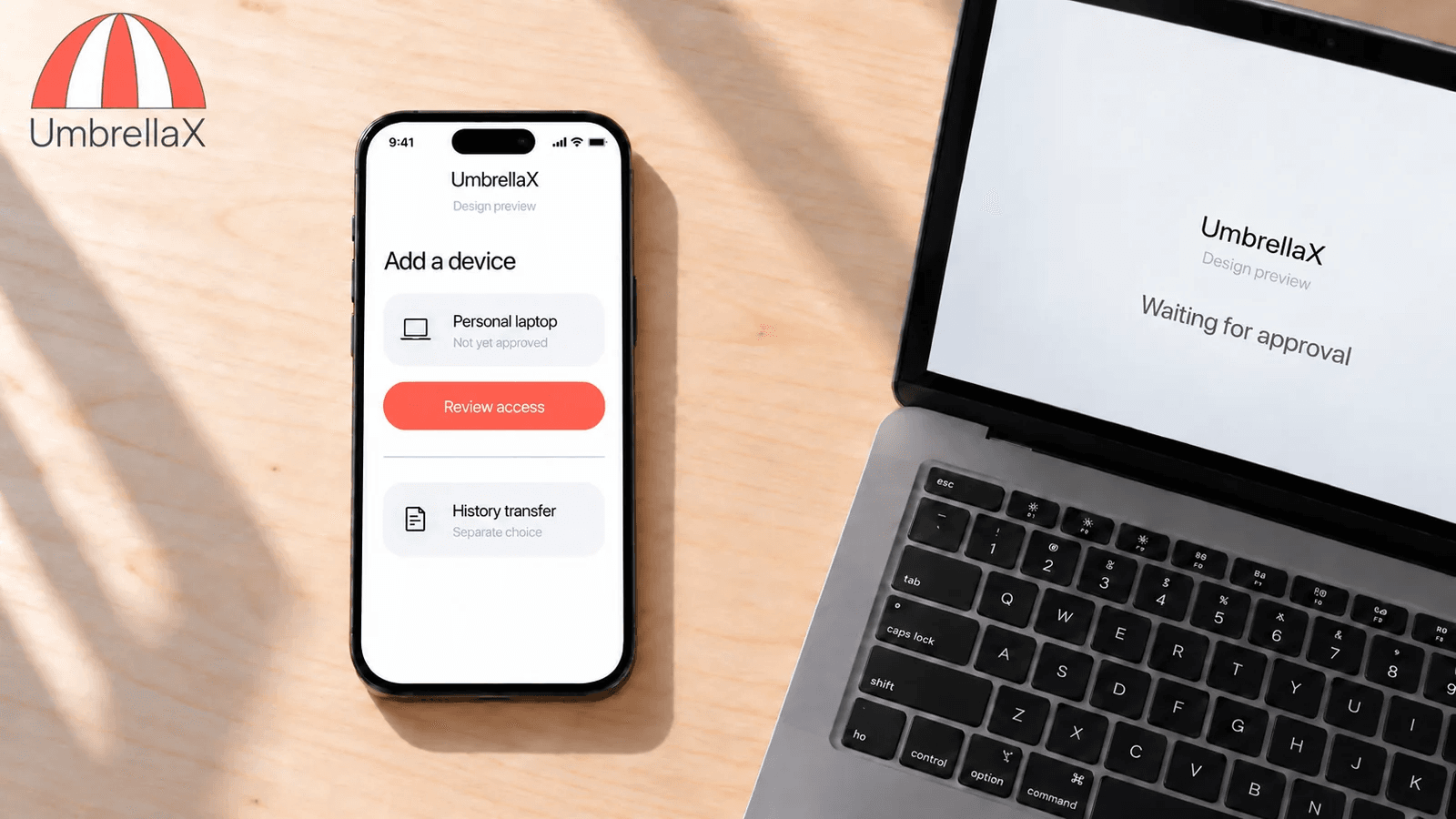
For UmbrellaX, I want the approval to distinguish receiving future conversations from importing earlier history. A user should be able to understand which screen is joining and what material it will receive before accepting. I would rather ask for a clear history decision once than conceal it inside a generic continue button.
I also want removal to say what it changes and what it cannot undo. A device-access screen should not pretend that revoking keys wipes every past copy. That constraint applies to group conversations too; the secure-group guide covers their membership boundary without turning this setup procedure into a protocol lecture.
The operator has a separate responsibility. Useful local evidence of device approval should not become an excuse to retain a detailed central record of someone’s reading habits. UmbrellaX’s operator-data requirements and privacy commitments are where I describe that accountability. Registration in Kazakhstan, outside the Five Eyes, does not absolve me from explaining it.
These are pre-launch requirements I intend UmbrellaX to demonstrate. The trust test a reader can use today is immediate: recognise every authorised screen, choose its access to the past, and remove it when its purpose ends. That is the standard I want UmbrellaX’s private messaging experience to make easier to follow.
Sources
- Signal Support: Linked Devices official
- Signal: More linked devices are on the table (and the Android tablet) official
- Signal: A Synchronized Start for Linked Devices official
- Signal Support: Unlinking devices official
- Signal Support: Signal Official Chat official
- Signal Support: Troubleshooting multiple devices official